

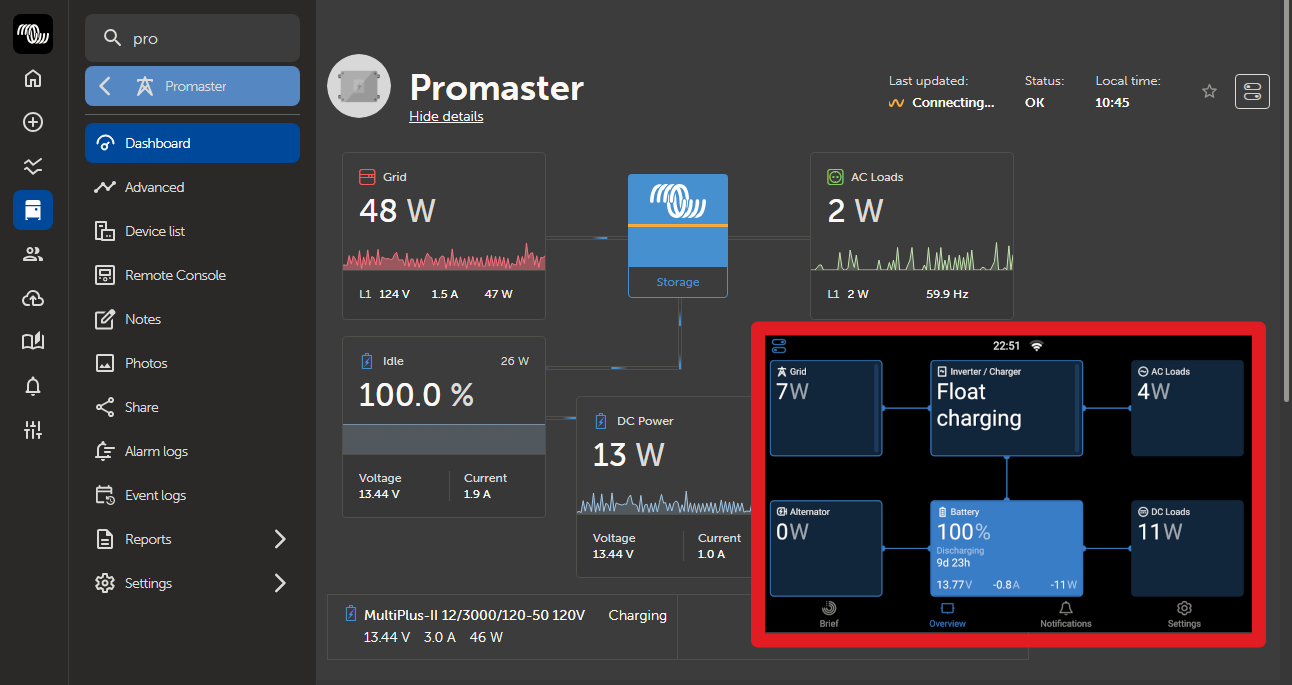
When a Cerbo is installed as part of your Victron camper van electrical system, it can connect to Victron’s free remote monitoring. VRM is Victron's Remote Monitoring System and allows just that - the ability to monitor your Victron Electrical System, Remotely. By setting up the VRM, you may even be able to twist our arm to help you inspect and configure your system.
This is one of the benefits of purchasing a Victron system from Vanlife Outfitters. Our expert tech support team is here to help you with your system. VRM allows us to see what your electrical system is doing, remotely troubleshoot or configure it.
The initial VRM connection setup needs a few particular steps. This assumes your electrical system and Cerbo are powered up. The following steps show you how to set up a VRM and invite us to your camper van electrical party!
Connectivity Note: The Cerbo will need to connect to a Wi-Fi network. This can be a home or public network near your van, as long as it’s a strong signal. The Cerbo’s internal antenna is not meant for long range connections, and, it’s inside your metal box camper van...so a strong Wi-Fi signal may be necessary. The wireless network must be a simple SSID and password login. The Cerbo can not connect to networks where a captive login webpage requires other interaction. The best type of connection is via wireless (or Ethernet) to a router in your van, which then connects out to the world via WiFi / Starlink / cellular, etc. The connection does not need to be always on. When the connection is available, the Cerbo can upload stored data from while you were offline, and VRM can see live data and be used to adjust settings.
GUI Note: We highly recommend switching from the Classic GUI to the "New GUI" on your Victron Cerbo GX, This blog shows you the steps using the New GUI. If you need to switch, first update your firmware to v3.50 or higher, then navigate to Settings > Display & Language > User Interface and change to New UI.
Enable the Remote Console: 
One of the cool features of VRM is the ability to remotely control your Cerbo GX using the remote console. To enable this we need to update a few settings. Start by entering the Menus (click anywhere on the screen to get the lower toolbar, and then select “Settings” gear icon in lower right.
Turn on Remote Support: Go to Settings -> General -> Access & Security  -> Remote Support. Move the slider to the right, enabling Remote Support.
Go back to the main Settings menu, and select the VRM menu: 
Make a note of the “VRM Portal ID”. We’ll need that a little later when we connect the Cerbo to the online VRM website.

Set the VRM Portal option to ‘Full’, which allows two-way communication between your Cerbo and the VRM website. 
When first enabling the portal ‘Full’ setting, select a password that you will need to enter when using Remote Console from VRM.
Finally, you need to power cycle/reboot your Cerbo GX before these settings take effect. One simple way to do this is to pull the power supply plug from the bottom of the Cerbo GX and then replug it.
Get your Cerbo connected to the VRM cloud!
1. Create a VRM Account
Start by establishing a VRM account for yourself on this page. These accounts are “free for life” from our friends at Victron! Once you register, they will send you a confirmation email that you have to open and confirm. Once you’ve confirmed, login to VRM.
2. Add Your “Installation”
Next, navigate to the “Add installation” screen in VRM website. Then choose “Cerbo GX” option. You’ll need to enter the “Installation ID” which is the “VRM Portal ID” you noted earlier when using your touch screen. You can also name your “installation” on this screen. Once you’ve provided that information you can press the “Request access” button to proceed to the next step
3. Considering Sharing Access
If you purchased your equipment from us (thanks), you can take advantage of our world-class support including adding us to your VRM account so that we can help you troubleshoot remotely when necessary. Or, perhaps you want someone else monitoring your system for other reasons. Whatever the reasons, to share your system, navigate to that “installation” in the left-side menu by clicking on the “installation”/system name. Then click on “Settings” and then select “Users”.

From this screen, use the “Invite user” button to invite a user. If you want to invite us, at Vanlife Outfitters, please share with our service department email address which is service@vanlifeoutfitters.com. Please select Technician level access so that we check and update firmware or other changes. We will get an email with an invite link to your system, and we’ll make a note of it with your order. If you call in the future with questions we can have a look and see what’s going on. We won’t make any changes without your permission, and we won’t share your info with anyone.
Victron also offers a "Share" link, but Vanlife Outfitters technical support can not use that method. Please use the Settings -> Users -> Invite User steps above to share access with support.
And that should be it. If you see service@vanlifeoutfitters.com listed as a technician user on your VRM system, you’re all set. And now we can help you out more effectively, if you want some help troubleshooting your camper van electrical system. Enjoy your top of the line Victron system, with remote monitoring, troubleshooting and support!
If you are looking for even more Victron VRM fun, you can also use it to configure most of the devices in your system. See this blog: Configuring your Victron system with VRM


