

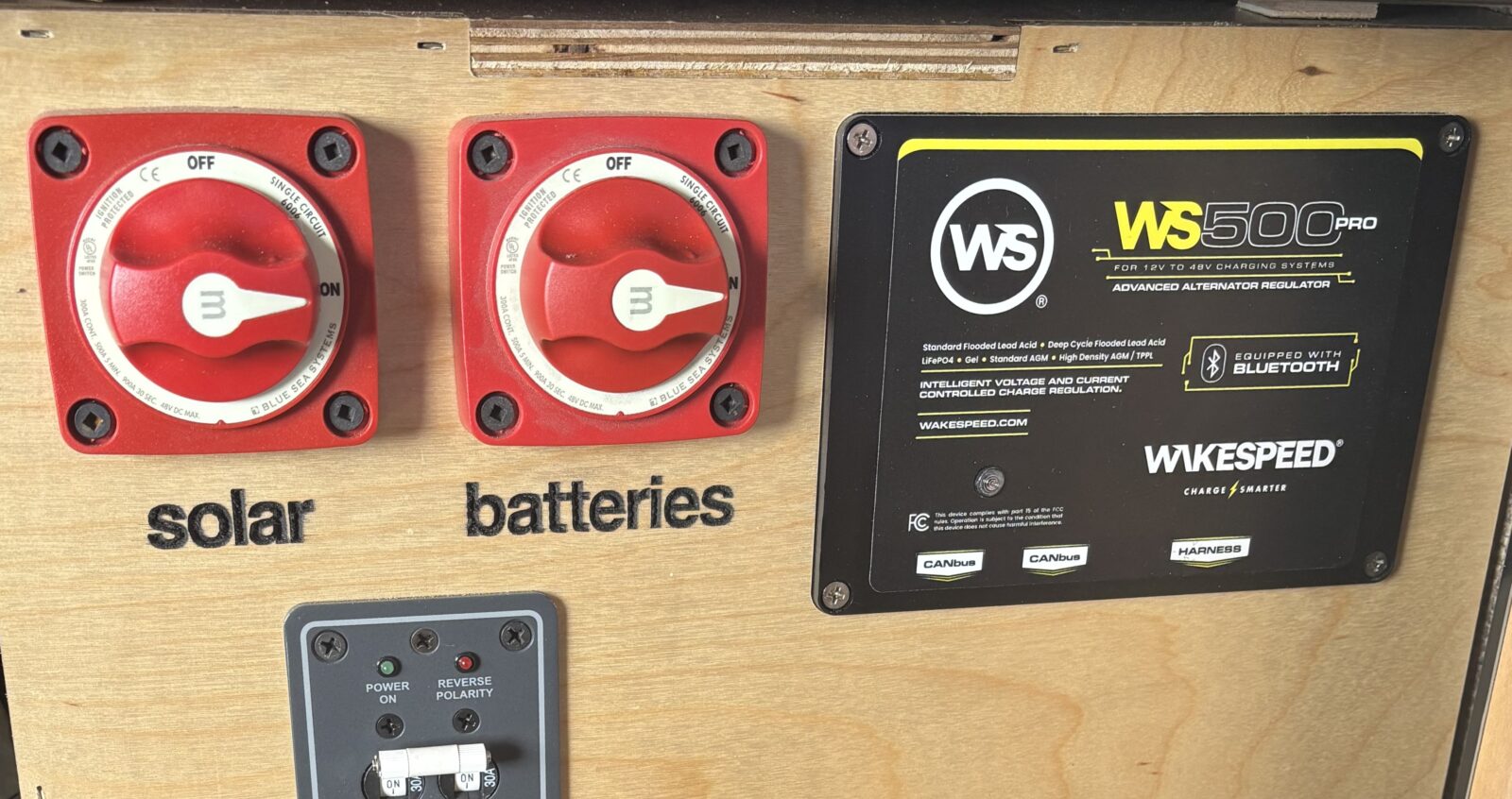
If your Nations + Wakespeed secondary alternator kit isn’t charging your camper van battery bank, use this post to diagnose wiring, LED states, CAN-bus settings, DVCC behavior, and RPM & temperature throttling.
|
Symptom |
Likely Cause |
Quick Fix |
|
WS500 LED not blinking yellow/orange or not showing up in Cerbo Devices list |
Improper CAN bus configuration |
Check CAN bus wiring (including terminators) and set Cerbo CAN bus to 250 kbit/s. Engine needs to be running |
|
No power from alternator |
Improper wiring, especially Feature-In “white wire” |
Set BMS relay to Alternator ATC mode Check all wiring versus example wiring diagram |
|
Less power from alternator than expected |
Derating is protecting batteries or alternator |
Retest with low battery State of Charge Make sure electronics and alternator are appropriately cooled |
|
Alternator powering correctly but Cerbo shows “--W” or incorrect DC Load power |
WS500 configuration issue |
Ensure that firmware is up to date Check alternator shunt wiring Make sure WS500 Ignore the Local Current Sensor? setting is Off |
We’re fortunate to have installed, commissioned and supported a ton of Nations + Wakespeed secondary alternator kits in our vans and customer’s rigs. What that really means is that we have experience from making a ton of simple mistakes when powering up these systems. One tricky aspect of the secondary alternator kits is that everything needs to be done correctly, otherwise no power may come out of the alternator. And well, massive power from the alternator is kind of the point.
We recently posted a two-part blog series on Powering Up Your Camper Van For The First Time. Part I discusses steps to think about before or during your build, and Part II focuses on the steps to energize & configure your mobile power system. Think of this post as a special addendum for secondary alternator kit power on & troubleshooting, where we touch on common mistakes and quick fixes.
Whether your system is 12 V, 24 V, or 48 V, these tips should help you. These tips focus on supported Wakespeed configurations such as Victron NG (or Smart) batteries, and like Part I says…we assume that you’ve double checked your wiring versus our example wiring diagrams.
What to check first (30 second triage)
-
Make sure that your BMS relay is set to Alternator ATC (allow-to-charge) mode. This setting can be done via Bluetooth using VictronConnect to your BMS. Without the relay mode configured, your Feature-In wiring isn’t complete.
-
Triple check the wiring connections from the BMS to the Feature-In wire on the Wakespeed harness. If your wiring is wrong, the Wakespeed may be inhibited. Measure the Feature-In wire on the harness and you should see your system voltage when the system is running.
-
Is your Wakespeed LED blinking a steady yellow/orange? If not, your Wakespeed is not in Sync mode to your BMS. Here’s the Wakespeed guide. Check your CAN bus connections and Victron Cerbo CAN settings. Both your BMS and your Wakespeed must be connected to the same CAN bus at the Cerbo. The CAN terminator (black for Wakespeed) is required on the unused Wakespeed port. Make sure that the appropriate Cerbo CAN bus is configured for VE.CAN & CAN-bus BMS (250 kbit/s). If these settings are correct, your Wakespeed will be visible on your Cerbo Devices list when your engine is running.
Wakespeed WS500 & WS500 Pro configuration
You really should understand your Wakespeed configuration, which is touched on in one of our secondary alternator system posts. With the newer WS500 Pro, either an Android or IOS device can be used. If you’re a customer with an original WS500, then it’s highly suggested to use a low-cost Android tablet for a USB OTG (On-The-Go) connection to the Wakespeed. Using the Wakespeed app, here are some quick checks:
-
Is your firmware up to date? Wakespeed-Victron integration and features have improved over time. The Wakespeed guide linked above notes the minimum firmware version required, but we highly recommend updating both your Cerbo and Wakespeed devices to the latest revision.
-
Make sure that DVCC is enabled on the Wakespeed. Using the Wakespeed app to Configure, in the System tab check that Support Victron DVCC? is ‘On’.
Victron Cerbo: What “-- W” or negative numbers mean for alternator power
-
Is your Cerbo reporting “-- W” for alternator power even though you’re seeing charging power into your batteries? Make sure that Ignore the Local Current Sensor? is ‘Off’ under Advanced Options in your Wakespeed app in the System tab. You’ll need to enable Expert Mode in the app settings, but you’ll need to act like an expert and follow Wakespeed’s guidance - don’t touch any of the red configuration fields unless you’ve read the manual and know what you’re doing! Why set Ignore the Local Current Sensor? to ‘Off’? Because two negatives make a positive in this case. You installed a current shunt to measure alternator power, so don’t ignore the current sensor and you’ll be seeing alternator power on your Cerbo!
-
Is your Cerbo reporting negative power from the alternator? Check your gray & purple wires on the Wakespeed harness, and check the inline fuses too. The purple wire connects to the shunt on the alternator side, while the gray wire connects to the shunt on the battery side. If those wires are reversed, your regulator is reading the current backwards. You can either swap those wires physically or use the Wakespeed app to fix it - that’s why there’s a Is shunt backwards? setting in the System tab.
Are you getting throttled? More tips for limited output power
-
Make sure that Wakespeed DIP switch 8 hasn’t been inadvertently set to On, which forces the regulator into Small Alternator mode which has reduced power.
-
Are your batteries already charged? If your Victron batteries have a State of Charge above the SoC Threshold in the BMS, then the algorithm controlling charging may be throttling charging power and optimizing your battery lifecycle performance. Don’t fret! Let your battery bank discharge, then try again to see if you’re getting the alternator charging power you expect.
-
Don’t forget that secondary alternator performance is proportional to engine RPMs. Especially if you have 24 V or 48 V secondary alternators with limited idle power expectations, give the engine some gas before testing your output power. Also don’t forget that the Wakespeed Engine Warmup Delay needs at least 30 seconds, so give it some time and then some RPMs!
-
Alternator temperature also impacts charging power. The Wakespeed will automatically reduce field drive and derate the alternator as temperatures increase, which leads to reduced power. You can check the alternator temperature from your Cerbo under Devices. Reduced power may be an expected situation to preserve the lifespan of your alternator!
Safety reminder: Your power distribution may be energized by any of your charging sources, not just your secondary alternator. Ensure that all charging sources are disabled before conducting maintenance such as checking wiring. Use caution near hot items such as the alternator or electronics, and adhere to safety warnings such as spinning belts in the engine compartment.
Got power now? Yay! If not, then bummer. But don’t worry, feel free to reach out to us because we’re here to help. Our tech support team will happily talk to you about the ways we’ve messed up building our systems. But then we’ll ask for pictures of your system, want you to get connected to VRM, and probably have you start working on a log file. You’ll be happily driving around recharging your system with massive power in no time!
FAQ: Getting Power From Your Secondary Alternator System
1. What is the most common mistake in powering on my secondary alternator?
Feature-In wiring is the most common issue leading to no power from a secondary alternator system. Check the ‘white wire’ wiring and make sure your BMS relay is set to Alternator ATC mode.
2. How do I connect to my Wakespeed regulator?
WS500 Pro users can use Bluetooth to connect with the Wakespeed Configuration and Monitoring Utility App (IOS or Android). WS500 users require a physical USB connection using the App (Android) or software on a Windows PC. A low-cost Android tablet is highly recommended!
3. What are the Wakespeed LED blink codes?
The Wakespeed regulator has a multi-colored LED. Somewhat surprisingly, a blinking yellow/orange LED is the desired blink code. Green LEDs means that your Wakespeed is not in Sync with your Victron Cerbo - check your CAN wiring and Cerbo CAN bus configuration. Red flashes are Error/Advisory codes - use the Wakespeed manual to identify the blink code and start troubleshooting.
4. Why am I getting reduced power from my Nations + Wakespeed system?
Typical reasons to get some, but not full, power from your secondary alternator system are temperature derating, high State of Charge (SoC) on your batteries, and incorrect expectations of idle power.
5. Why does my Cerbo show “--W” for alternator power?
The system needs an alternator shunt to measure alternator power, so that’s one reason we highly recommend wiring in a shunt. To see the shunt measurements on your Cerbo, make sure that Ignore the Local Current Sensor? is configured to ‘Off’ using the Wakespeed app.
Related Resources
Powering Up Your Camper Van Electrical System The First Time!: Part I and Part II
Secondary Alternator System Blogs and Diagrams: 12 Volts, 24 Volts, and 48 Volts
Nations + Wakespeed Secondary Alternator Kit and Electrical System Bundle
Wakespeed basic configuration video


